Quick answer
0x80073712 is ERROR_SXS_ASSEMBLY_MISSING (HRESULT −2147010798). Windows tried to install an update, went looking for a component manifest inside the component store, and the file it needed was not there. In 2026 the most common trigger is an interrupted servicing stack update that left WinSxS half-written. Fix chain, cheapest first: Windows Update troubleshooter → reset update components → DISM /RestoreHealth → sfc /scannow → manual install from the Update Catalog → in-place repair upgrade.
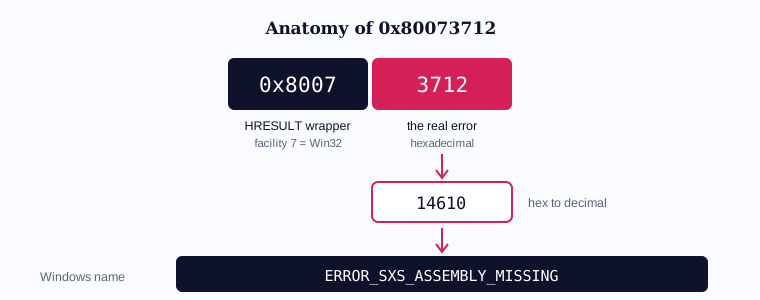
Which fix do I need?
Match your situation to the row, then jump straight to that fix. You do not need to work through all nine.
| When you see it | Most likely cause | Go to | Time | Difficulty |
|---|---|---|---|---|
| Right after a failed update, first occurrence | Stuck servicing session | Fix 1 → Fix 2 | 10 min | Easy |
| Same update fails repeatedly, others install fine | One damaged payload | Fix 5 | 15 min | Medium |
| Every update now fails | Component store damage | Fix 6 → Fix 7 | 30–60 min | Medium |
| During a feature upgrade (23H2 → 24H2) | Servicing stack behind | Fix 4 → Fix 5 | 25 min | Medium |
| On Windows Server, after a rollup | Missing parent package | Fix 5 → Fix 6 | 30 min | Medium |
| DISM itself fails with 0x80073712 | Store beyond in-place repair | Fix 8 → Fix 9 | 60–90 min | Advanced |
What does 0x80073712 mean?
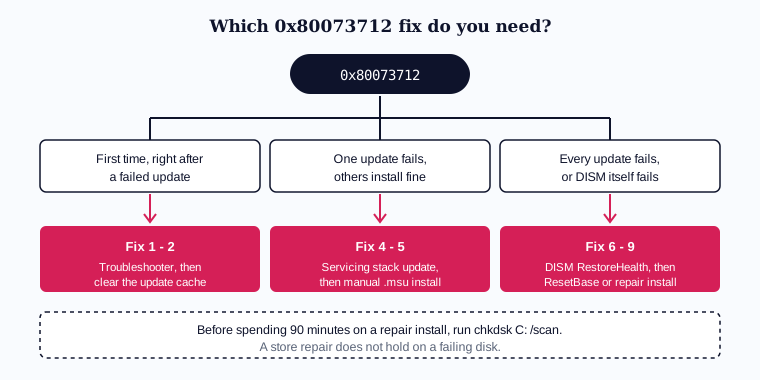
The code is a Win32 error wrapped as an HRESULT. Strip the 0x8007 facility prefix and you are left with 0x3712 — decimal 14610 — which Windows defines as ERROR_SXS_ASSEMBLY_MISSING: “The referenced assembly could not be found.”
The subsystem raising it is CBS (Component Based Servicing), the part of Windows that installs updates by assembling components out of the component store at C:\Windows\WinSxS. Every update package declares the components it depends on. CBS resolves each dependency against a manifest in WinSxS. When a manifest that a package names is absent or unreadable, CBS cannot safely continue, so it stops and returns 0x80073712.
On screen the message is usually vague — “There were some problems installing updates, but we’ll try again later”, with the code shown underneath. The specific meaning never surfaces in the UI, which is why the code has to be looked up.
The important implication: this is a data-integrity error, not a permissions or network error. Retrying the same update will fail identically until the missing component is restored. That is why the fixes below repair the store rather than re-running the download.
Where you’ll see it
- During Windows Update — the most common case, typically on a cumulative update or a .NET rollup.
- During a feature upgrade — moving between Windows 11 versions, where the servicing stack is older than the package expects.
- When installing a .msu manually — the standalone installer reports the same code after “Searching for updates on this computer”.
- When enabling a Windows feature — .NET Framework 3.5 and Hyper-V both surface it when their source components are missing.
- In the Microsoft Store — app installs fail when a shared framework package is damaged.
- On Windows Server — after a monthly rollup, usually where an earlier prerequisite package was never applied.
- Inside DISM output — the most serious variant, covered in Fix 8.
If your failure is tied to one specific update, the KB-level guides may be faster: KB5007651, KB5043080 and KB2267602 are the three that most often surface this code.

Root causes, diagnosed
Confirm which one you have before choosing a fix. Each cause below has a test that either proves or rules it out.
1. An interrupted servicing session
An update was applied and the machine lost power, was force-restarted, or the session was killed by a crash. CBS marked components as pending and never finished.
Confirm it: open PowerShell as administrator and run Get-ChildItem C:\Windows\WinSxS\pending.xml. If the file exists, a session is stuck. Also check C:\Windows\Logs\CBS\CBS.log for the string Startup Processing repeating across reboots.
2. Genuine component-store corruption
Manifests in WinSxS are damaged or absent — from a failing disk, an aggressive “cleaner” utility, or an antivirus that quarantined a system file.
Confirm it: run DISM /Online /Cleanup-Image /ScanHealth. It reports either “no component store corruption detected” or “The component store is repairable.”
3. A missing prerequisite package
The update you are installing depends on an earlier package that was never applied — common on machines that were offline for months, and on Server.
Confirm it: search CBS.log for Failed to resolve package or Missing near the failure timestamp. The line names the package it wanted.
Select-String -Path C:\Windows\Logs\CBS\CBS.log -Pattern "0x80073712","Missing","Failed to resolve" | Select-Object -Last 304. Disk-level damage
Bad sectors under WinSxS. Rare, but it is the reason a store repair can succeed and then fail again a week later.
Confirm it: chkdsk C: /scan. Any reported errors mean the disk must be dealt with before any repair will hold.
Quick fixes for 0x80073712
Easy — no risk, under ten minutes. Start here.
Fix 1 — Run the Windows Update troubleshooter (Easy · 5 min)
Use this when: it is the first occurrence, immediately after a failed update — cause 1.
- Open the troubleshooter. Press Windows, type Troubleshoot settings, open it, then choose Other troubleshooters.
- Run Windows Update. Click Run next to it and let it finish without interrupting.
- Restart. Reboot even if it reports nothing found — some repairs only apply on restart.
Success looks like: Windows Update retries and moves past the point it previously failed.
This clears a minority of 0x80073712 cases — only those where a stuck session can be released without touching the store. It costs five minutes and rules out the cheapest cause, which is why it goes first.
Fix 2 — Clear the update cache (Easy · 8 min)
Use this when: Fix 1 changed nothing and the same update keeps failing — cause 1.
- Open Command Prompt as administrator. Press Windows, type cmd, right-click Command Prompt, choose Run as administrator.
- Stop the services, rename the folders, restart the services. Run each line in order.
net stop wuauserv
net stop cryptSvc
net stop bits
net stop msiserver
ren C:\Windows\SoftwareDistribution SoftwareDistribution.old
ren C:\Windows\System32\catroot2 catroot2.old
net start wuauserv
net start cryptSvc
net start bits
net start msiserver
Success looks like: both ren commands return with no error. If either says “Access is denied”, a service is still running — stop it and retry.
Renaming rather than deleting is deliberate: Windows rebuilds both folders on the next update check, and the originals stay recoverable if anything goes wrong.
Intermediate fixes for 0x80073712
Medium — these rebuild update state and repair the store.
Fix 3 — Run System File Checker (Medium · 15 min)
Use this when: ScanHealth reported corruption — cause 2.
sfc /scannowSuccess looks like: “Windows Resource Protection found corrupt files and successfully repaired them.”
Note the ordering trap: SFC repairs system files using the component store. If the store is what is damaged, SFC will report that it could not fix everything. That is not a failure — it is the signal to run Fix 6 first and then return here.
Fix 4 — Install the latest servicing stack update (Medium · 10 min)
Use this when: the failure is on a feature upgrade, or the machine has been offline for months — cause 3.
The servicing stack is the component that installs other components. When it is older than the package being installed, dependency resolution fails and returns this code.
- Find your build. Press Windows+R, type
winver, press Enter, and note the OS build number. - Get the matching SSU. Search that build on the Microsoft Update Catalog and download the servicing stack update for your architecture.
- Install it and reboot before retrying the original update.
Success looks like: the SSU installs without error and the original update then proceeds.
On Windows 11 the SSU is usually bundled into the cumulative update, so this fix matters most on Windows 10 and on Server.
Fix 5 — Install the failing update manually (Medium · 15 min)
Use this when: one specific update fails while others install normally.
- Note the KB number from Settings → Windows Update → Update history.
- Download the .msu for your exact Windows version and architecture from the Update Catalog.
- Run the installer and let it complete without interruption.
Success looks like: the standalone installer completes and the KB appears in Update history.
This works because the standalone installer takes a different path through CBS than Windows Update does, and will sometimes resolve a dependency that the service could not. It clears roughly a third of single-update cases.
Fix 6 — Repair the component store with DISM (Medium · 20–40 min)
Use this when: ScanHealth said the store is repairable, or every update now fails — cause 2.
DISM /Online /Cleanup-Image /CheckHealth
DISM /Online /Cleanup-Image /ScanHealth
DISM /Online /Cleanup-Image /RestoreHealth
Success looks like: “The restore operation completed successfully.” Follow it with sfc /scannow, then retry the update.
This is the highest-yield fix on the page — it resolves the majority of 0x80073712 cases, because component-store damage is the most common underlying cause. RestoreHealth can sit at 20% or 62% for several minutes; that is normal, do not interrupt it.
Fix 7 — Repair DISM from a local source (Medium · 30 min)
Use this when: RestoreHealth fails because it cannot reach Windows Update, or the machine is offline — cause 2 plus a network constraint.
- Download the ISO for your exact Windows version and mount it — note the drive letter.
- Point DISM at it, replacing
E:with your mounted drive.
DISM /Online /Cleanup-Image /RestoreHealth /Source:WIM:E:\sources\install.wim:1 /LimitAccessSuccess looks like: the same “completed successfully” message, without any network access.
The ISO must match the installed version. A 23H2 source will not repair a 24H2 install, and mismatches are the usual reason this step fails.
Advanced fixes for 0x80073712
Advanced — image repair and reinstall. Back up first.
Fix 8 — Reset the component store base (Advanced · 30 min)
Use this when: DISM itself returns 0x80073712 — the store is damaged badly enough that its own repair cannot run.
DISM /Online /Cleanup-Image /StartComponentCleanup /ResetBaseSuccess looks like: the operation completes and a subsequent RestoreHealth now succeeds.
This is irreversible: ResetBase removes all superseded component versions, so every update already installed becomes permanently uninstallable. Only run it once the cheaper fixes have failed, and only when you are prepared not to roll back.
Fix 9 — In-place repair upgrade (Advanced · 60–90 min)
Use this when: everything above has failed. This rebuilds the component store completely while keeping files, apps and settings.
- Download the ISO for your current Windows version.
- Mount it and run
setup.exefrom inside Windows — not from boot media. - Choose “Keep personal files and apps” when prompted.
Success looks like: setup completes, you land on your desktop with your apps intact, and Windows Update works again.
This resolves essentially every 0x80073712 case that is not caused by failing hardware, which is why the disk check matters before you spend ninety minutes here.
When to stop and escalate
Stop and treat it as a hardware problem if chkdsk reports uncorrectable errors, if the error returns within days of a successful in-place repair, or if SMART shows reallocated sectors. Repairing a store on a failing disk does not hold.
Before asking for help, collect: a zip of C:\Windows\Logs\CBS\, the output of DISM /Online /Cleanup-Image /ScanHealth, your winver build number, and the KB number of the failing update. Those four make the difference between a diagnosis and a guess.
Preventing 0x80073712
- Never force-restart during an update. Nearly every stuck-session case starts here.
- Leave WinSxS alone. Cleanup utilities that promise to shrink it cause the exact corruption this page repairs. Use
DISM /StartComponentCleanupif you must reclaim space. - Do not stay months behind. Missing-prerequisite failures are almost always on long-unpatched machines.
- Exclude
C:\Windows\WinSxSandC:\Windows\Logs\CBSfrom third-party antivirus scanning if your product allows it.
Related error codes
| Code | What it means | How it differs from 0x80073712 |
|---|---|---|
| 0x80070002 | File not found | The same servicing failure with a missing file rather than a missing manifest — the update cache is usually enough to fix it |
| 0x800f081f | Source files not found | DISM knows what it needs but cannot reach a source; 0x80073712 means the component itself is absent from the store |
| 0x80070643 | Fatal installation error | Usually .NET or the WinRE partition, not the component store — different subsystem entirely |
| 0x800f0922 | Install stage failure | Commonly a System Reserved partition size problem; 0x80073712 is never about disk space |
A full index of the codes covered on this site is at Windows error codes.
Frequently asked questions
What does error 0x80073712 mean?
It is ERROR_SXS_ASSEMBLY_MISSING, HRESULT −2147010798. A component manifest that a Windows update depends on is missing or unreadable in the component store at C:\Windows\WinSxS, so Component Based Servicing cannot complete the install.
Is 0x80073712 dangerous?
Not by itself — nothing is being deleted and no data is at risk. But it means your machine cannot install updates, so it will fall behind on security patches until it is fixed.
Will a restart fix 0x80073712?
Only when the cause is a stuck servicing session. If the same code returns after a reboot, the component store needs repairing and you should go to Fix 6.
Why does DISM itself fail with 0x80073712?
Because DISM repairs the store using the store’s own metadata. When that metadata is what is damaged, DISM has nothing to work from. Use ResetBase (Fix 8) or a local ISO source (Fix 7).
How long does DISM RestoreHealth take?
Typically 20 to 40 minutes. It commonly appears frozen at 20% or 62% for several minutes at a time. Do not interrupt it — an interrupted repair can leave the store worse than it started.
Can I just delete the WinSxS folder?
No. WinSxS is the component store Windows installs from; deleting it makes the system unservicable and usually unbootable. Reclaim space with DISM /Online /Cleanup-Image /StartComponentCleanup instead.
Does 0x80073712 mean my hard drive is failing?
Usually not, but it can. Run chkdsk C: /scan. If it reports uncorrectable errors, or the code returns days after a successful repair, treat the disk as the real problem.
Will an in-place repair upgrade delete my files?
No, provided you choose “Keep personal files and apps” and run setup.exe from inside Windows rather than from boot media. Take a backup first regardless.