Error 0x80073D02 appears when Microsoft Store or Windows Update cannot install or update an app because something is already using the files it needs to modify. The message shown is:
“Installation Failure: Windows failed to install the following update with error 0x80073D02”
Or in Microsoft Store:
“The package could not be installed because resources it modifies are currently in use.”
The error appears on both Windows 11 and Windows 10 computers. It is not an issue like Microsoft Store not opening — when it occurs, the installation process of any app or game gets aborted. It may happen randomly or constantly.
The good news: 0x80073D02 almost always resolves quickly. The most common cause is that the app being updated — or a background process using its files — is still running. Closing it and retrying is often all that is needed.
This guide walks through every cause, the correct diagnostic approach, and every fix in order.
What Does 0x80073D02 Mean?
0x80073D02 means the Windows package installer cannot complete the operation because one or more resources it needs to modify are currently locked by another process.
When Microsoft Store installs or updates an app, it needs to write to specific files and registry entries that belong to that app. If those files are open — because the app is running, a background service is using them, or an antivirus scanner has them locked — the package installer cannot replace them and fails with 0x80073D02.
It is related to a family of similar Store and deployment error codes: 0x80073cf3, 0x80073cf9, 0x80073d19, 0x80073cfa, 0x80073d06, and 0x80073cff all indicate various package installation constraint failures. 0x80073D02 specifically points to resources currently in use.
Where 0x80073D02 Appears
The error surfaces in three main places.
Microsoft Store app installs and updates — the most common location. Attempting to install a new app or update an existing one through the Store produces the error when files are locked.
Windows Update — for Store-delivered components that ship through Windows Update rather than the Store interface directly. Common offenders in 2026 include Microsoft.DesktopAppInstaller (the winget package manager), WebExperience (the Widgets platform), YourPhone/Phone Link, and Xbox-related packages.
Xbox app and Xbox game installations — gaming-specific Store packages frequently produce 0x80073D02 when the Xbox app itself is open and trying to update simultaneously.
0x80073D02 vs Similar Error Codes
| Error Code | Meaning | Primary Fix |
|---|---|---|
| 0x80073D02 | Package resources in use | Close conflicting apps, reset Store cache |
| 0x80070643 | Installation failure | WinRE partition or .NET repair |
| 0x80070002 | File not found | Cache reset + date/time |
| 0x80073712 | Component store corrupt | DISM /RestoreHealth |
| 0x80244022 | Server unavailable | Network/proxy fix |
Every Root Cause
Cause 1 — The App Being Updated Is Still Running
The most common cause and the easiest to fix. This error often occurs when another app is running that conflicts with the update — like Desktop App Installer itself. Closing such apps before retrying helps.
If Microsoft Store is trying to update an app that is currently open — or a background service for that app is running — the installer cannot replace the app’s files and fails with 0x80073D02.
Cause 2 — Desktop App Installer (winget) Running in Background
The Desktop App Installer — which provides the winget command-line package manager — is a frequent source of 0x80073D02 in 2026. When Windows Update or Microsoft Store tries to update Microsoft.DesktopAppInstaller while winget is actively running or queued to run, the package installation fails.
This is particularly common because winget is used by many third-party apps and developers, and it may be running as a background scheduled task without any visible window.
Cause 3 — Corrupted Microsoft Store Cache
When cached files get corrupted, the Microsoft Store may fail to install or update apps by showing error code 0x80073D02. The corrupted cache interferes with the installation process even when the app files themselves are not locked.
Cause 4 — Microsoft Store App Itself Corrupted
If the Store app has internal issues — from a previous failed update, a system file problem, or corrupted registration — it can produce 0x80073D02 for any installation attempt regardless of whether the target app is running.
Cause 5 — Automatic App Updates Disabled
The Microsoft Store error code 0x80073D02 occurs because you have turned off automatic app updates — either manually or during a Windows Technical Preview installation. When automatic updates are disabled through registry settings, Store updates can fail with this error.
Cause 6 — Network Problems and Antivirus Interference
Some antivirus or firewalls may interrupt the download or installation process on Microsoft Store. Incorrect time and region settings may also lead to this problem.
Diagnostic Step — Identify the Conflicting Process
Before applying any fix, check Task Manager for processes that might be locking update files.
Press Ctrl+Shift+Esc to open Task Manager. Look for any of these processes in the Processes list:
WinStore.App.exe — Microsoft Store itself. If it is running and you are trying to update something in it, close and reopen Store.
AppInstaller.exe or DesktopAppInstaller — the winget package manager. End this process before retrying a Microsoft.DesktopAppInstaller update.
Any process matching the app you are trying to install — if you are updating Xbox, look for Xbox processes; if updating Phone Link, look for YourPhone.exe.
End any relevant processes, then return to Microsoft Store or Windows Update and retry. If the error clears after ending a specific process, that was your cause.
Every Fix — In Order
Fix 1 — Restart PC and Retry
Always start with a restart. A restart clears all running processes — including background app instances that were locking update files — and gives the package installer a clean environment to work in.
After restarting, go directly to Microsoft Store or Windows Update and retry the failed installation before opening any other apps. Many 0x80073D02 errors resolve permanently after a single restart.
Fix 2 — Close All Running Apps and Retry
If the error returns after restarting, close every open application before attempting the update again.
Close all open apps from the taskbar. Open Task Manager and end any processes matching the app you are trying to install. Specifically look for and end AppInstaller.exe or any winget-related processes. Then retry the update from Microsoft Store or Windows Update.
Fix 3 — Reset Microsoft Store Cache (wsreset)
Resetting the Store cache is the primary fix for cache-related 0x80073D02 and resolves most cases that Fix 1 and Fix 2 do not.
Press Win+R to open the Run dialog. Type wsreset.exe and press Enter.
A blank Command Prompt window opens. Do not close it. Wait for it to run — this typically takes 30 to 60 seconds. When it closes automatically, Microsoft Store opens fresh. The Store cache has been reset.
Retry the failed installation. In most cases, the update installs successfully after wsreset.
Fix 4 — Run Windows Store Apps Troubleshooter
Windows has a built-in troubleshooter specifically for Store app issues.
Windows 10:
Go to Settings, Update and Security, Troubleshoot, Additional troubleshooters. Under Other, find Windows Store Apps and click Run.
Windows 11:
Go to Settings, System, Troubleshoot, Other troubleshooters. Find Windows Store Apps and click Run.
Note: Microsoft removed the Windows Store Apps troubleshooter from Windows 11 in 2024 on some builds. If it is not present, skip to Fix 5.
The troubleshooter checks for service configuration issues, app registration problems, and cache corruption. Apply any suggested fixes and restart before retrying.
Fix 5 — Repair or Reset Microsoft Store From Settings
If the Store itself is corrupted, repairing it restores the app to a working state without removing data.
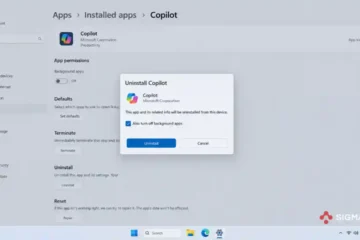
Go to Settings, Apps, Installed apps. Search for Microsoft Store in the list. Click the three dots and select Advanced options. Click Repair first. Wait for the repair to complete and retry the failed installation.
If repair does not work, return to the same screen and click Reset. This clears all Store data and restores the app to its default state.
Fix 6 — Re-Register Microsoft Store via PowerShell
If repairing and resetting through Settings does not resolve the error, re-registering the Store forces a complete re-registration of its package manifest.
Open PowerShell as administrator. Run:
powershell
Get-AppxPackage -allusers Microsoft.WindowsStore | Foreach {Add-AppxPackage -DisableDevelopmentMode -Register "$($_.InstallLocation)\AppXManifest.xml"}Wait for the command to complete. Restart your PC and retry the installation.
Fix 7 — Re-Enable Automatic App Updates (Registry Fix)
If 0x80073D02 appeared after manually disabling automatic app updates or after a Windows Technical Preview installation, re-enable automatic updates through the registry.
Open Command Prompt as administrator and run:
cmd
reg add "HKLM\SOFTWARE\Microsoft\Windows\CurrentVersion\WindowsStore\WindowsUpdate" /v AutoDownload /t REG_DWORD /d 4 /fRestart your PC and retry Microsoft Store updates.
Fix 8 — Check Date, Time, and Region Settings
Microsoft Store uses your system’s date, time, and region settings for certificate validation during downloads. Incorrect settings can cause unexpected Store errors.
Go to Settings, Time and Language, Date and Time. Ensure Set time automatically is On. Click Sync now to force an immediate sync. Verify the correct time zone is selected.
Go to Settings, Time and Language, Language and Region. Ensure your Region is set correctly for your location.
Restart and retry the installation.
Fix 9 — Temporarily Disable Antivirus
Third-party antivirus software with real-time file monitoring can lock Store app files mid-write, triggering 0x80073D02.
Temporarily disable real-time protection on your antivirus. Right-click the antivirus icon in the system tray and pause or disable protection. Retry the Microsoft Store installation. If it succeeds, re-enable protection and add Microsoft Store’s folder to exclusions:
C:\Program Files\WindowsApps\
C:\Windows\SoftwareDistribution\
Fix 10 — Run SFC and DISM
If corrupted system files are behind the 0x80073D02 error, repairing them with system tools resolves the underlying cause.
Open Command Prompt as administrator and run:
cmd
sfc /scannowWait for completion. Then run:
cmd
DISM /Online /Cleanup-Image /RestoreHealthRestart after both complete and retry the Store installation.
Fix 11 — Reinstall Microsoft Store via PowerShell
If re-registering the Store did not work, fully reinstalling it removes the corrupted installation and replaces it with a fresh copy.
Open PowerShell as administrator and run:
powershell
Get-AppxPackage *WindowsStore* | Remove-AppxPackageThen reinstall:
powershell
Get-AppxPackage -AllUsers Microsoft.WindowsStore | Foreach {Add-AppxPackage -DisableDevelopmentMode -Register "$($_.InstallLocation)\AppXManifest.xml"}Restart and check Microsoft Store.
Fix 12 — In-Place Repair Upgrade (Last Resort)
If all Store-specific fixes have failed and 0x80073D02 appears for every app installation attempt, the underlying Windows app platform may need a full repair.
Download the Windows 11 Installation Media tool from Microsoft. Run it and select Upgrade this PC now with Keep personal files and apps. The in-place repair rebuilds the Windows app platform completely while preserving all files and applications.
Quick Fix Decision Table
| Situation | Start With |
|---|---|
| Error appeared once | Fix 1 — Restart |
| App being updated is currently open | Fix 2 — Close all apps |
| Error after restart persists | Fix 3 — wsreset.exe |
| 0x80073D02 with DesktopAppInstaller | Fix 2 — End AppInstaller.exe |
| Error for all Store apps | Fix 5 — Repair/Reset Store |
| Third-party antivirus installed | Fix 9 — Disable temporarily |
| Error after disabling auto-updates | Fix 7 — Registry re-enable |
| All fixes failed | Fix 12 — In-place repair |
0x80073D02 in Windows Update — KB5007651 and Store Component Updates
One specific scenario that generates 0x80073D02 through Windows Update rather than the Store interface deserves separate mention.
The KB5007651 Windows Security Platform update produces 0x80073D02 in some configurations when the Windows Security app files are locked by the Defender service during the update attempt. This is the same “resources currently in use” mechanism — the Security Health service holds files that KB5007651 needs to update.
The fix is the same: restart the relevant services before retrying.
Open Command Prompt as administrator:
cmd
net stop SecurityHealthService
net stop WinDefend
net start WinDefend
net start SecurityHealthService
Then retry Windows Update.
For Microsoft.DesktopAppInstaller and other Store components delivered through Windows Update, the wsreset fix (Fix 3) and closing winget processes (Fix 2) resolve most cases.
Frequently Asked Questions
What is Microsoft Store error 0x80073D02?
Error 0x80073D02 means the Windows package installer cannot complete a Store app installation or update because one or more files it needs to modify are currently locked by another running process. It appears as “Installation Failure: Windows failed to install the following update with error 0x80073D02” in both Microsoft Store and Windows Update for Store-delivered components.
Why does 0x80073D02 appear for Desktop App Installer?
Microsoft.DesktopAppInstaller — which provides the winget command-line package manager — is a frequent source of 0x80073D02 because winget may be actively running or queued as a background task when Windows Update tries to update the package. Opening Task Manager and ending AppInstaller.exe before retrying the update resolves this specific case.
What does wsreset.exe do and how does it fix 0x80073D02?
wsreset.exe clears the Microsoft Store cache — temporary and corrupted files that Store uses to speed up operations. When the cache becomes corrupted, Store fails with errors including 0x80073D02. Running wsreset.exe removes the corrupted cache and forces Store to rebuild it fresh. Run it by pressing Win+R, typing wsreset.exe, pressing Enter, and waiting for the Command Prompt window to close automatically.
Is 0x80073D02 a Windows Update error or a Store error?
Both. 0x80073D02 primarily appears in Microsoft Store when installing or updating apps. It also appears in Windows Update for components that are delivered as Store packages — including Microsoft.DesktopAppInstaller, WebExperience, YourPhone, and Xbox-related packages. The cause and fixes are the same regardless of where it appears.
Why does closing apps fix 0x80073D02?
The error occurs when files the update needs to modify are currently locked by a running process. Closing all running apps — particularly the app being updated — releases those file locks. With the files unlocked, the package installer can write the new version cleanly.
Can antivirus cause 0x80073D02?
Yes. Antivirus real-time file monitoring can lock Store app files as it scans them during a download or installation, causing 0x80073D02. Temporarily disabling antivirus protection before retrying the Store installation, then adding WindowsApps and SoftwareDistribution folders to exclusions, resolves this cause.
What is the registry fix for 0x80073D02?
If automatic app updates were disabled — either manually or during a Windows Technical Preview setup — a registry value prevents Store updates from completing. Running reg add "HKLM\SOFTWARE\Microsoft\Windows\CurrentVersion\WindowsStore\WindowsUpdate" /v AutoDownload /t REG_DWORD /d 4 /f in an elevated Command Prompt re-enables automatic updates and resolves this specific cause.