If you are still using Windows 10, it is time to upgrade. Windows 10 stopped getting support in October 2025, which means no more security updates unless you pay for extra coverage. The good news is that upgrading to Windows 11 is still completely free for most people. This guide walks you through checking if your PC qualifies, upgrading step by step, and what to do if your PC does not meet the requirements.
Quick Answer
- Upgrading to Windows 11 is still free if you have a genuine, activated copy of Windows 10
- Check eligibility using Settings > Windows Update, or download Microsoft’s free PC Health Check app
- Most PCs upgrade automatically through Windows Update, no download needed
- The process usually takes 1 to 3 hours
- Your files, apps, and settings stay exactly where they are
- You get 10 days to roll back to Windows 10 if you change your mind
- If your PC does not qualify, you have a few other options, covered below
Do I Need to Pay to Upgrade to Windows 11
No. As long as your copy of Windows 10 is genuine and already activated, Microsoft is not charging anything to upgrade to Windows 11. This has not changed in 2026.
What Does My PC Need to Run Windows 11
Before you start, your PC needs to meet these minimum requirements:
- Processor: 1 GHz or faster, with 2 or more cores, on Microsoft’s list of supported processors
- Memory (RAM): 4 GB or more
- Storage: 64 GB or larger, with some free space available
- System firmware: UEFI, with Secure Boot support
- TPM: Version 2.0, and it needs to be turned on
- Graphics: A card compatible with DirectX 12
- Internet and account: An internet connection and a Microsoft account are required if you are using Windows 11 Home
- Current OS: Windows 10, version 2004 or newer
The two requirements that trip up the most people are TPM 2.0 and the supported processor list. A lot of otherwise perfectly good PCs, especially ones older than about 2018, get blocked because of these two checks specifically. If you are not sure whether your BIOS has TPM 2.0 turned on, our guide on checking your BIOS version walks you through finding that setting.
How to Check If Your PC Can Upgrade
You have two easy ways to check:
Option 1: Check through Windows Update
- Go to Settings
- Click Windows Update
- Click Check for updates
- If your PC qualifies, you will see a banner offering the upgrade to Windows 11
Option 2: Use the PC Health Check app
- Download the free PC Health Check app from Microsoft’s official website
- Install it and open it
- Click Check now
- It will tell you clearly whether your PC is ready, and if not, exactly which requirement is holding it back
The PC Health Check app is the faster and more reliable option, since it tells you the specific reason if your PC does not qualify, rather than just showing or hiding the upgrade banner.
Before You Upgrade: A Quick Checklist
Take a few minutes to do this first, it will save you trouble later:
- Back up your important files. A cloud backup or an external drive both work fine. This is standard practice before any major OS upgrade.
- Confirm Windows 10 is activated. Go to Settings > System > Activation and make sure it shows as activated, and that it is linked to a Microsoft account.
- Check your important apps and devices. Look up whether your printer, scanner, or any specific work software has Windows 11 support. Older printers are the most common thing people get caught out by.
- Plug in your laptop. Stay connected to power for the entire upgrade. A power cut mid-install can cause real problems.
- Set aside enough time. The full process usually takes 1 to 3 hours depending on your PC’s speed.
How to Upgrade to Windows 11 (Step by Step)
For most people, this is the easiest method:
- Go to Settings
- Click Windows Update
- Click Check for updates
- If you see “Upgrade to Windows 11 is ready”, click Download and install
- Your PC will download the upgrade, then ask you to restart to finish installing it
- Follow the on-screen steps, your files, programs, and settings all carry over automatically
If you do not see the upgrade option yet but your PC passed the PC Health Check, you can trigger it manually using the Windows 11 Installation Assistant, a small tool available directly from Microsoft’s website. Running it starts the same upgrade process without waiting for it to show up in Windows Update on its own schedule.
What to Check After Upgrading
Once the upgrade finishes and your PC restarts into Windows 11:
- Confirm Windows is activated: Settings > System > Activation
- Check that your Wi-Fi, printer, and any external devices still work properly
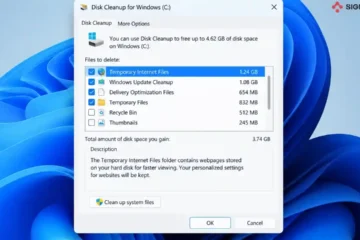
- Once you are confident everything is working, you can free up storage space by running Disk Cleanup and removing the “Previous Windows installation” files it left behind
Can I Go Back to Windows 10 If I Don’t Like It
Yes, but only for a limited time. For 10 days after upgrading, you can roll back to Windows 10 through Settings > System > Recovery > Go back, and your files and settings will be preserved. After those 10 days, that option disappears, and going back means doing a full clean reinstall of Windows 10 and manually restoring your data from backup.
What If My PC Doesn’t Qualify for Windows 11
If PC Health Check tells you your device does not meet the requirements, here are your realistic options:
- Stay on Windows 10 with Extended Security Updates (ESU). This gives you continued security patches on eligible Windows 10 PCs through October 2027, which buys you time without upgrading right away.
- Consider a new PC. If your current device is genuinely too old, Microsoft and most major PC makers, including Dell, HP, Lenovo, Asus, and Acer, offer trade-in programs that give you credit toward a new Windows 11 machine.
- Bypass methods exist, but come with real risk. There are unofficial ways to install Windows 11 on unsupported hardware. Microsoft does not recommend this, since it can lead to instability and missed updates down the line. If you go this route, do so knowing you are on your own if something breaks.
For most people with a PC from the last 5 to 6 years, upgrading through the normal free process is the simplest and safest path forward.
Frequently Asked Questions
Is upgrading to Windows 11 really free?
Yes, as long as you have a genuine, activated copy of Windows 10, the upgrade to Windows 11 through Microsoft’s official channels costs nothing.
How do I check if my PC can run Windows 11?
Use Microsoft’s free PC Health Check app, or check directly through Settings > Windows Update to see if the upgrade banner appears.
What are the minimum requirements for Windows 11?
You need a 1 GHz+ processor on Microsoft’s supported list, 4 GB of RAM, 64 GB of storage, UEFI firmware with Secure Boot, TPM 2.0 enabled, and a DirectX 12 compatible graphics card.
Will I lose my files when I upgrade?
No. Upgrading through Windows Update or the Installation Assistant keeps your files, apps, and settings in place. It is still smart to back up important files beforehand, just in case.
How long does the upgrade take?
Usually between 1 and 3 hours, depending on your PC’s speed and internet connection.
Can I go back to Windows 10 after upgrading?
Yes, but only within 10 days of upgrading. After that, reverting requires a full clean reinstall of Windows 10.
My PC doesn’t meet the requirements. What can I do?
You can stay on Windows 10 with Extended Security Updates through October 2027, look into a trade-in program for a new Windows 11 PC, or use an unofficial bypass method at your own risk.