

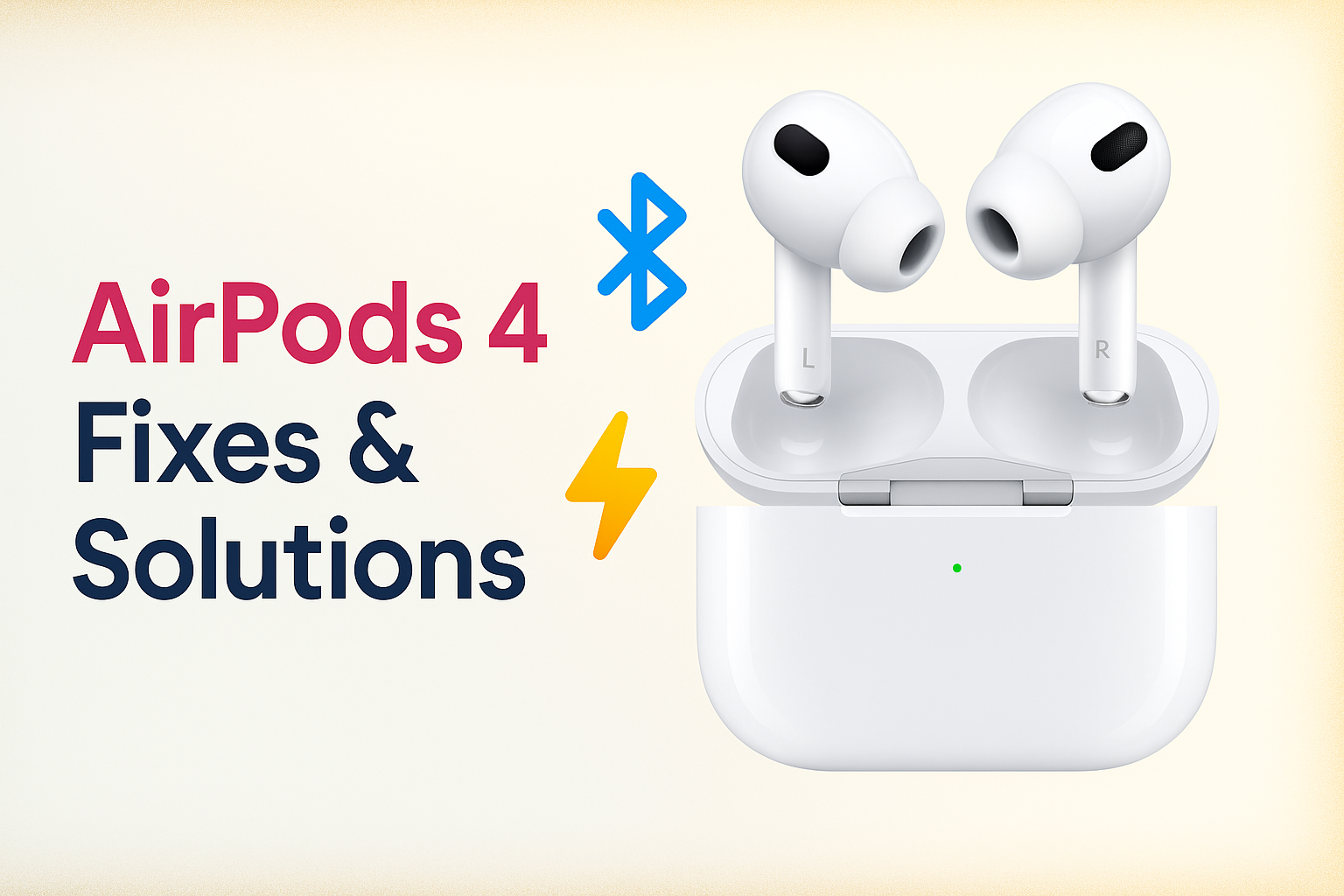
The launch of AirPods 4 in 2024 brought exciting upgrades to Apple’s audio lineup, featuring the advanced H2 chip, more immersive personalized spatial audio, and tougher water, dust, and sweat resistance. Still, as with any hot new release, some users have been quick to flag concerns about connectivity issues and battery lifespan. If you’re dealing with things like sudden Bluetooth disconnects, one AirPod not responding, or your charging case running out of juice too soon, you’re definitely not alone. Let’s walk through the most common AirPods 4 troubles—and share real-world fixes so you can get back to enjoying your music without hiccups.
Tackling Common AirPods 4 Connectivity Problems
AirPods 4 use Bluetooth 5.3 for improved connections, but that doesn’t mean they’re immune to glitches. Sometimes one earbud won’t connect, audio will drop unexpectedly, or switching devices just doesn’t go smoothly. Below, we’ll look at why these annoyances happen and offer straightforward troubleshooting tips backed by both research and everyday user stories.
Causes of Connectivity Issues
- Bluetooth interference from other electronics or crowded wireless environments.
- Outdated AirPods 4 firmware or system software on your device.
- Pairing confusion caused by repeatedly switching between several Apple devices.
- Physical barriers or dirty sensors on your AirPods.
Quick Fixes
- Reset Your AirPods 4: Place your AirPods in their case, close the lid for half a minute, then open it and hold the setup button until the LED flashes white. Now, pair them again with your device.
- Update Firmware & Device Software: Go to your Bluetooth settings to check for updates and make sure your iPhone, iPad, or Mac is running the latest version.
- Forget and Reconnect: In Bluetooth settings, select “Forget This Device” for your AirPods, then set them up again from scratch.
- Clean Earbuds & Charging Contacts: Carefully wipe sensors and contacts with a lint-free or microfiber cloth—sometimes a speck of dust really can mess things up.
- Minimize Interference: Move away from microwaves, crowded Wi-Fi networks, or busy Bluetooth zones whenever you can.
Curious about how technology handles interference and privacy? You might also want to check out this helpful guide on AI and keeping devices safe for kids.
Addressing Battery Drain and Charging Problems
Apple claims up to 30 hours of listening with the AirPods 4 case, but some owners notice the battery running out much faster—or find the charging case itself loses power even when the earbuds seem fine.
Why Does Battery Drain Happen?
- Features like Personalized Spatial Audio or Active Noise Cancellation (ANC) being used constantly.
- Firmware bugs or update issues leaving the case or buds “awake” and draining power.
- Dirt or debris blocking solid contact inside the charging case.
- Charging with off-brand or incompatible cables and chargers.
Effective Solutions
- Regularly Restart & Reset: If battery oddities keep popping up, try restarting both your device and AirPods 4, or give them a full reset following the earlier steps.
- Firmware Updates Matter: Make sure your AirPods and main device both get the latest updates—these often include fixes for battery issues.
- Inspect Case & Contacts: Use a soft, dry brush or cloth to clean out the inside of your charging case—tiny dust bits can disrupt the charging process.
- Switch Off Power-Intensive Features: If you’re trying to stretch battery life, turn off features like spatial audio or transparency mode from your settings, especially when you don’t need them.
- Use Official Accessories: Stick with certified Apple chargers and cables, rather than random third-party ones, to keep charging consistent.
- Monitor Charging Patterns: If your case keeps losing charge when not in use (like dropping 10% overnight), try fully draining and then recharging it. If things don’t improve, it’s a good idea to contact Apple Support.
Preventive Care for Long-Term Performance
Getting the most out of your AirPods 4 isn’t just about fixing issues—regular care can make a real difference. Always store them in their case, keep them away from extreme hot or cold spots, and make a habit of cleaning the earbuds and charging contacts. Checking for firmware updates once a month, especially soon after new releases, can also help avoid surprises down the line.
Being proactive also means paying attention to how the latest features influence your devices. For more on making tech work for you, you might appreciate this discussion about time-saving developer tools.
When to Seek Professional Help
If you’ve tried all of these steps and still struggle with disconnects, battery headaches, or constant case troubles, there may be a hardware fault or stubborn software bug. Apple Support can help with repairs or replacements if you’re under warranty. To speed up your visit, keep a record of what you’ve already tried and have your device details handy.
Final Thoughts: Sharing and Learning with the AirPods 4 Community
Most AirPods 4 problems can be solved with a little patience and the right steps—but remember, you’re not the only one facing them. The AirPods community is a great source of advice, and sometimes fellow users find solutions before Apple does. By staying on top of common issues and knowing the quick fixes, you can keep your AirPods 4 in top shape and your music uninterrupted.
Interested in how new tech and trends shape our daily devices? Browse more SigmaWire articles for insights. For a creative angle, you might enjoy this feature on eye-catching font generators, or a look behind the curtain at language models in AI.
By keeping up with updates, sharing experiences, and learning from the AirPods community, you’ll get the most value from your AirPods 4 and handle new challenges with ease.




Can you be more specific about the content of your article? After reading it, I still have some doubts. Hope you can help me.